Claim & optimize your Google Business Profile
By the end of this lesson you'll have a verified Google Business Profile that travelers can find on Search and Maps.
If you only do one thing this month, do this. A claimed and verified Google Business Profile makes you appear on Google Maps, in local search, and unlocks every other Google feature for tourism businesses.
Step 1 — Create or claim your profile
Go to google.com/business and sign in with the Google account you want to use to manage the listing (use a business email, not a personal one if possible).
Search for your business name and address. If it already exists, click 'Claim this business'. If it doesn't, click 'Add your business to Google'.
Step 2 — Verify
Google will send a postcard, email, phone call, or video to verify you really run the business. Postcards take 5–14 days — start now even if you're not ready to optimize.
No storefront? Verify as a service-area business
A tour guide with no storefront is a service-area business (SAB) in Google's eyes, and you can verify without a physical location.
Create the profile at business.google.com/add. When asked about customers, pick "I deliver goods and services to my customers", hide the address and set your service areas. Google still needs an address for verification — a home address works, but not a P.O. box, virtual office or mailbox service. It stays hidden from the public.
Expect video verification. Postcards are rarer now, and a self-recorded video is the most common method for service-area and home-based businesses. Search for your business on Google or Maps, tap Get verified and choose the video option. Record one continuous, uncut video that shows:
- Your location: somewhere inside your service area, with street signs or landmarks visible (not generic, unmarked land).
- Branding: your business name on a business card, uniform, branded signage or tour vehicle.
- Equipment: tour gear, headsets, flags, printed itineraries or your vehicle.
- Proof you run the business: your booking software login or business documents (registration, invoices) that match the profile.
- Before recording: make sure your name, phone and website match exactly on your site and the profile — mismatches are a common reason for denials.
- Pitfall: a fixed meeting point where customers show up can make Google treat you as a hybrid business, which changes the signage rules.
- Pitfall: keep the service area realistic — up to 20 areas, within about 2 hours' drive of your base.
- Pitfall: if the video is rejected, fix what the notice says and resubmit. Never create a duplicate profile.
Step 3 — Fill in everything
An incomplete profile gets pushed down. Spend 30 minutes filling in:
- Business name (exactly as it appears on signage)
- Primary category (e.g. 'Tour operator', 'Museum', 'Tourist attraction')
- Up to 9 secondary categories
- Full address or service area
- Phone number and website
- Opening hours (and special holiday hours)
- 10+ high-quality photos: exterior, interior, your team, your tour in action
- A clear description with the city name and what you offer
Step 4 — Get reviews (the right way)
After every tour, send guests the short Google review link Google generates for you. Reviews are the #1 ranking factor for local search. Aim for 50+ to look credible, then keep going.
Always reply to reviews — good and bad. It's a public signal that you care.
Google's checklist 1 — Business information
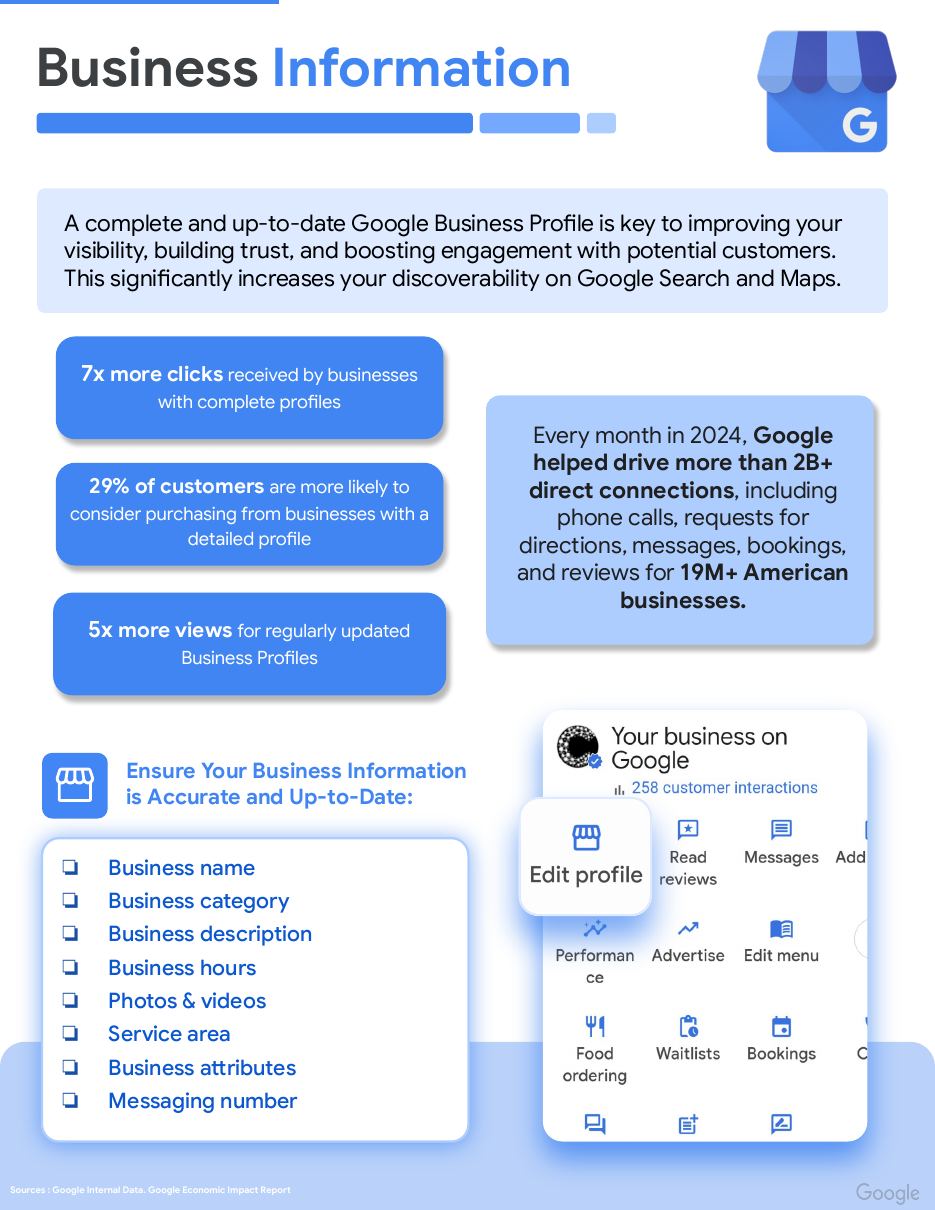
Google's own guide for tour and activity operators starts here: a complete, up-to-date profile improves visibility on Search and Maps and builds trust.
Businesses with complete profiles get 7x more clicks, 29% of customers are more likely to consider buying from a business with a detailed profile, and regularly updated profiles get 5x more views. Make sure each of these is accurate:
- Business name
- Business category
- Business description
- Business hours
- Photos & videos
- Service area
- Business attributes
- Messaging number
Google's checklist 2 — Business category
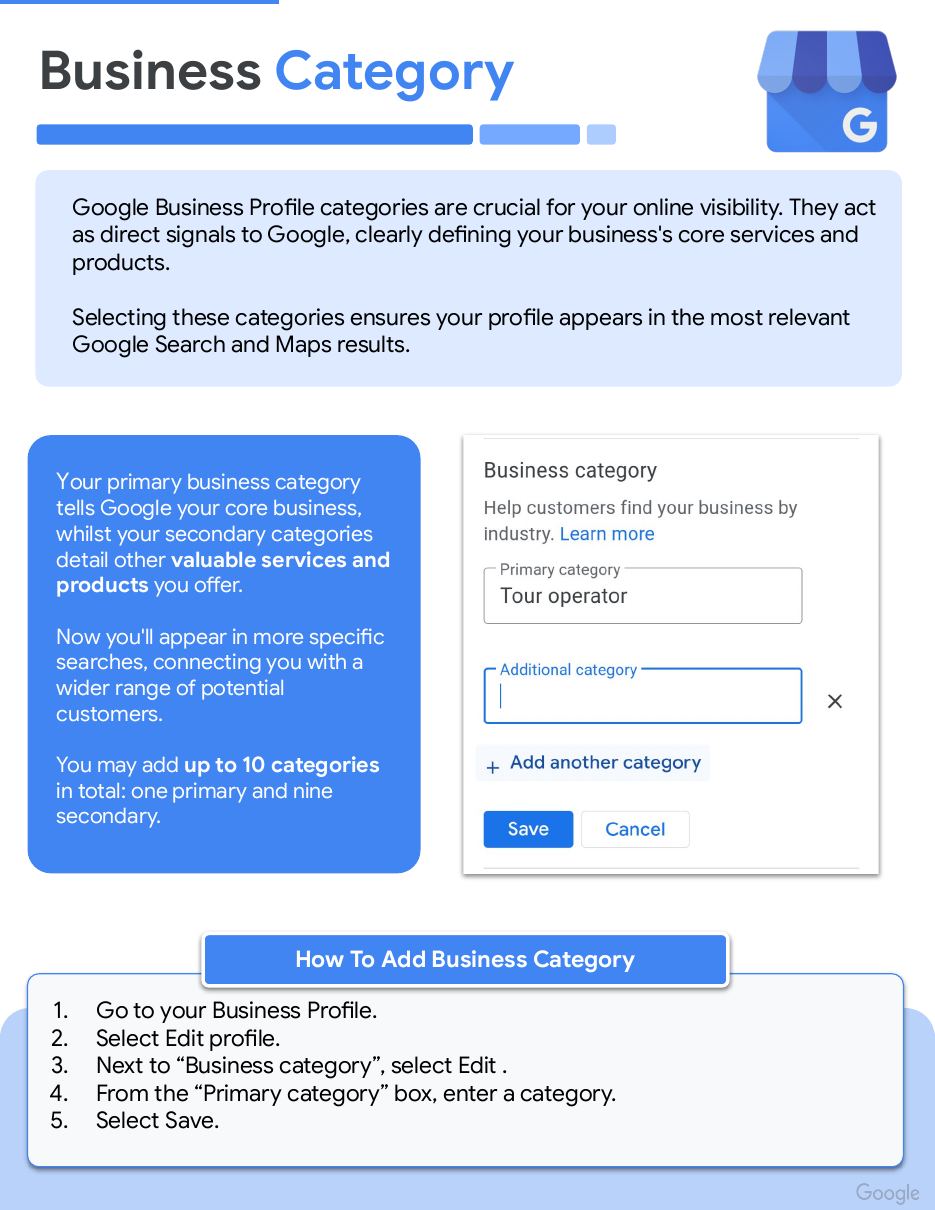
Categories are direct signals to Google about what you do. Your primary category (for example 'Tour operator') states your core business; secondary categories cover other services. You can add up to 10 in total: one primary and nine secondary.
How to: go to your Business Profile → Edit profile → next to 'Business category' select Edit → enter a primary category (and add more) → Save.
Google's checklist 3 — Business description
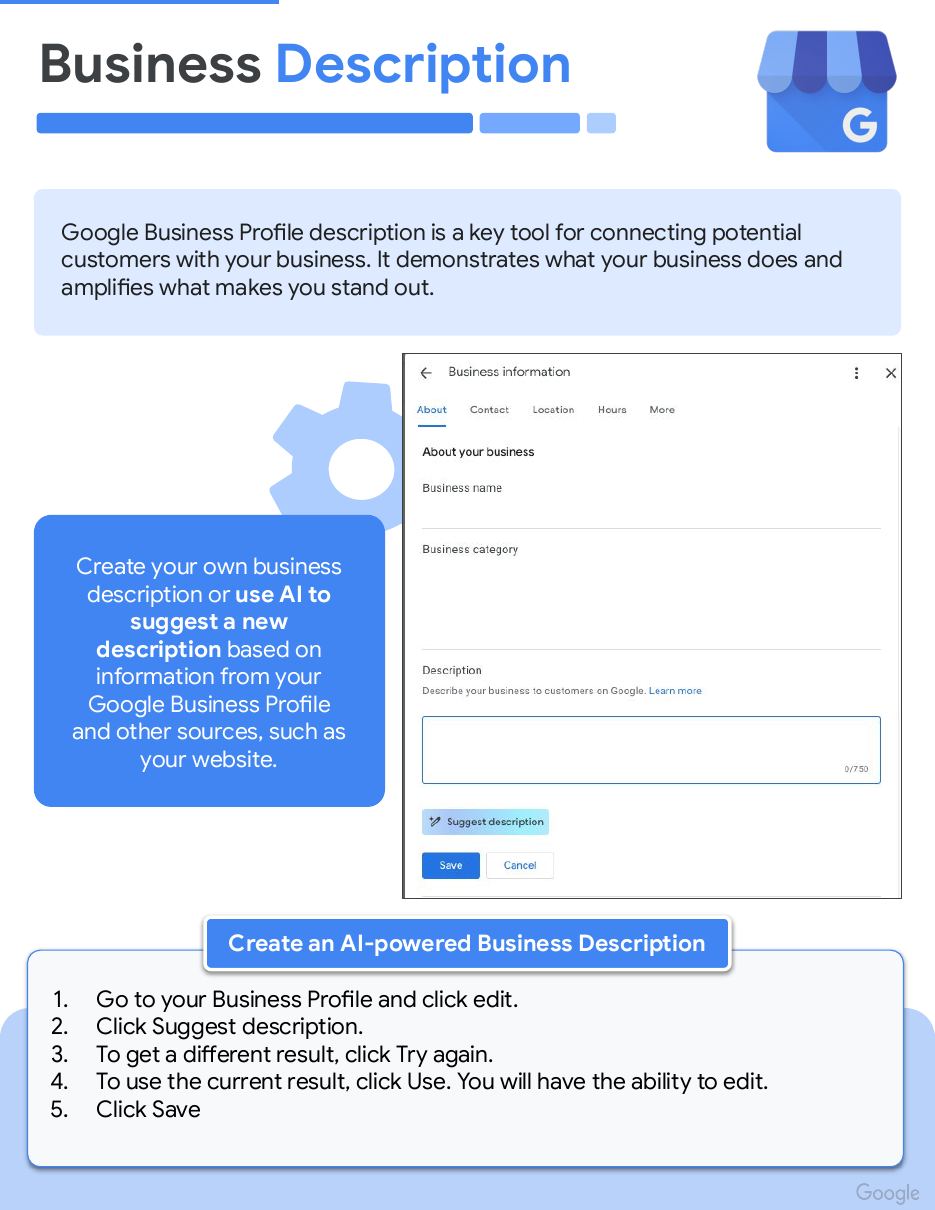
Your description says what you do and what makes you stand out. Write your own, or let Google's AI suggest one based on your profile and website.
How to: open your profile and click edit → Suggest description → Try again for another version, or Use to accept it → edit if needed → Save.
Google's checklist 4 — Business hours
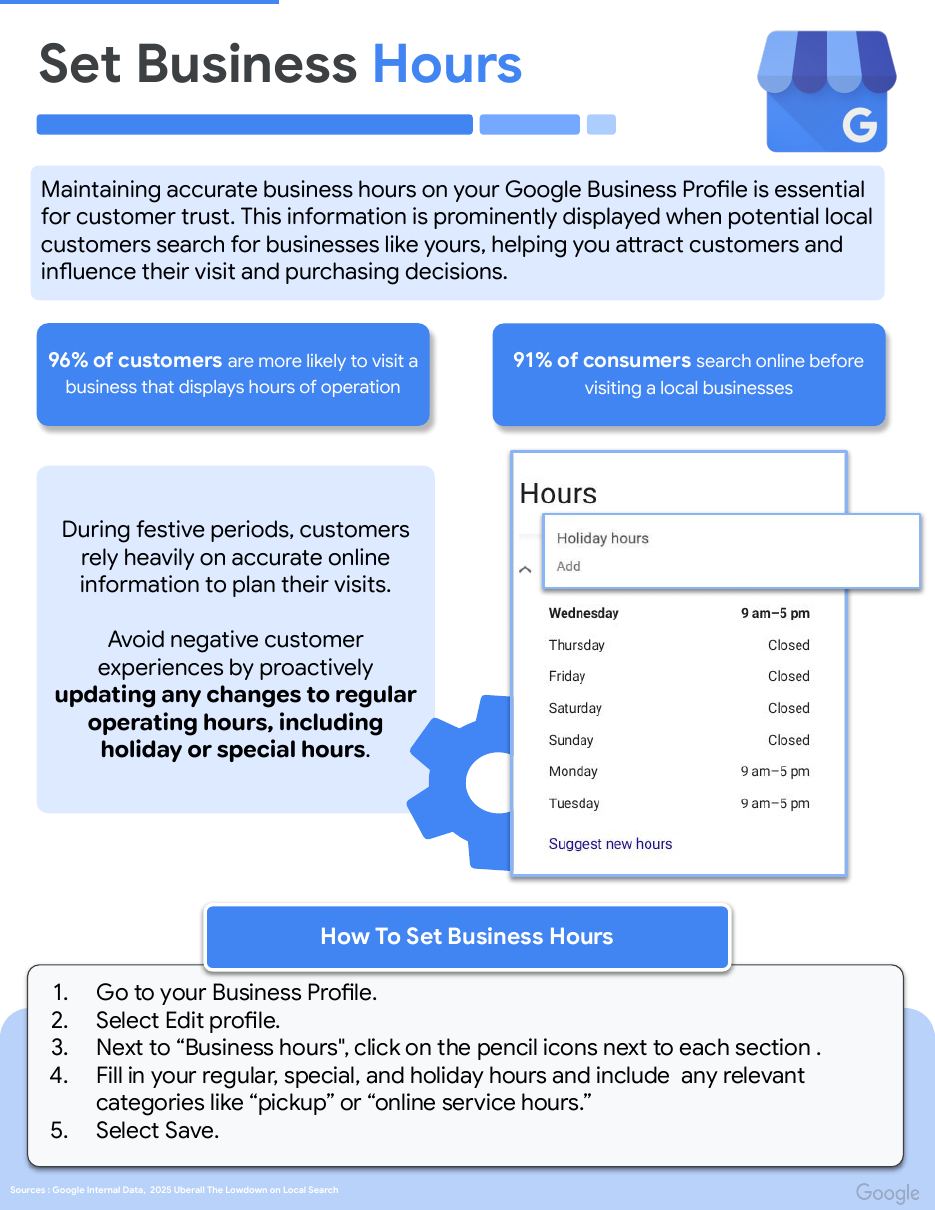
96% of customers are more likely to visit a business that shows its hours, and 91% search online before visiting. Keep regular, special and holiday hours up to date so travelers aren't caught out.
How to: Edit profile → next to 'Business hours' click the pencil icons → fill in regular, special and holiday hours (plus categories like 'pickup' or 'online service hours') → Save.
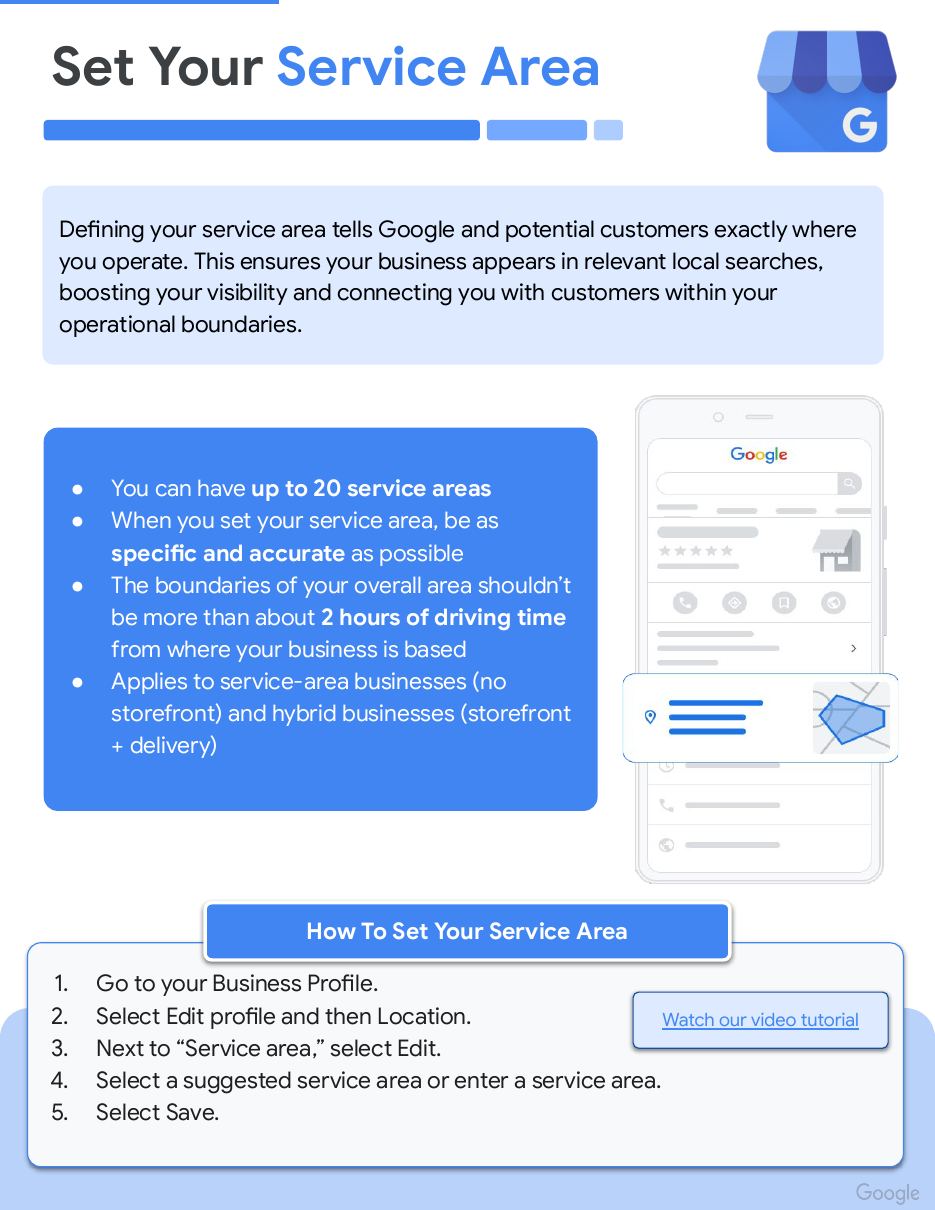
Google's checklist 5 — Service area
Your service area tells Google where you operate, so you show in the right local searches. It applies to service-area businesses (no storefront) and hybrid businesses.
How to: Edit profile → Location → next to 'Service area' select Edit → pick or type areas → Save.
- Up to 20 service areas
- Be specific and accurate
- Keep the overall area within about 2 hours' drive of your base
Google's checklist 6 — Business attributes
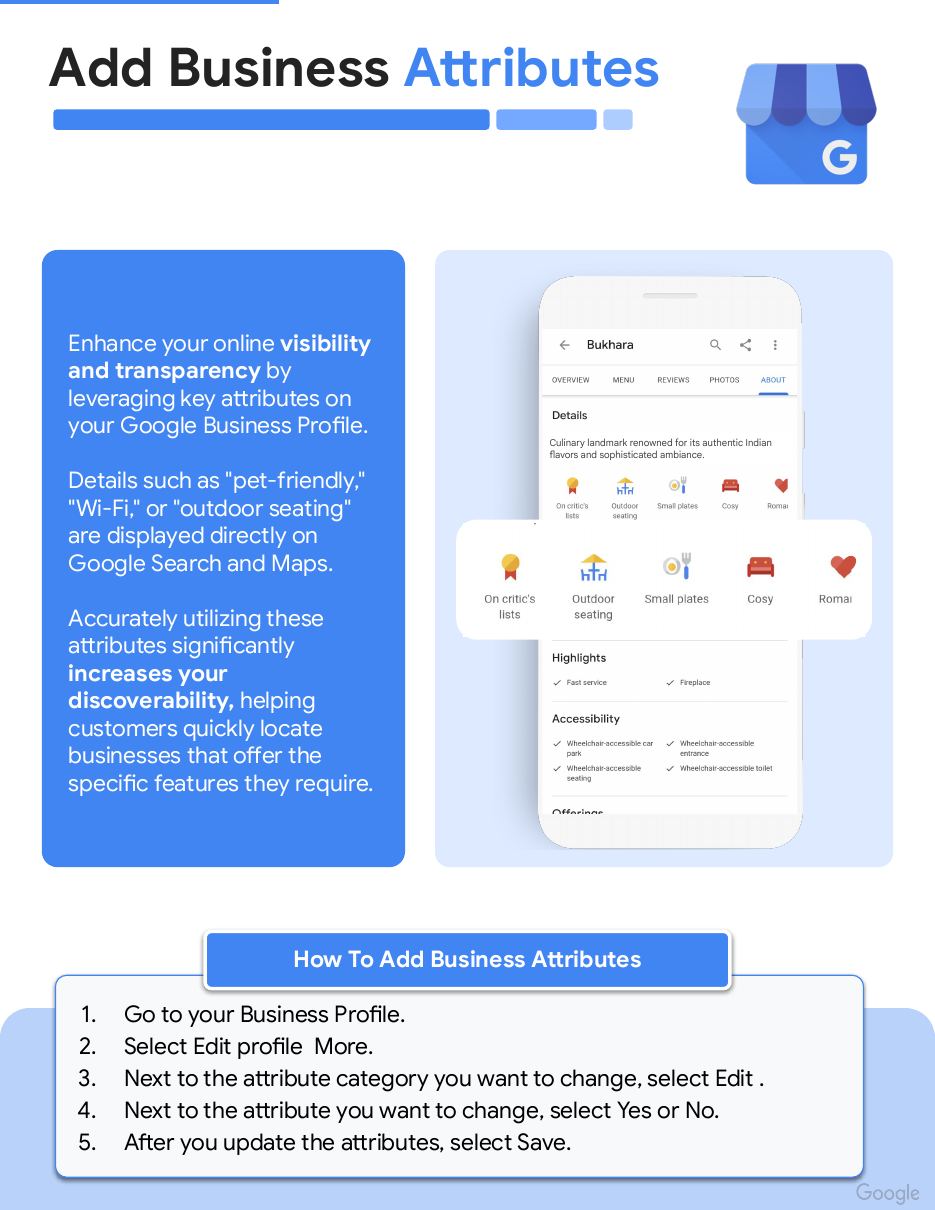
Attributes such as 'wheelchair accessible', 'family-friendly' or 'Wi-Fi' appear directly on Search and Maps and help travelers who filter for specific features find you.
How to: Edit profile → More → next to the attribute category select Edit → choose Yes or No for each attribute → Save.
Google's checklist 7 — Activity & ticket details
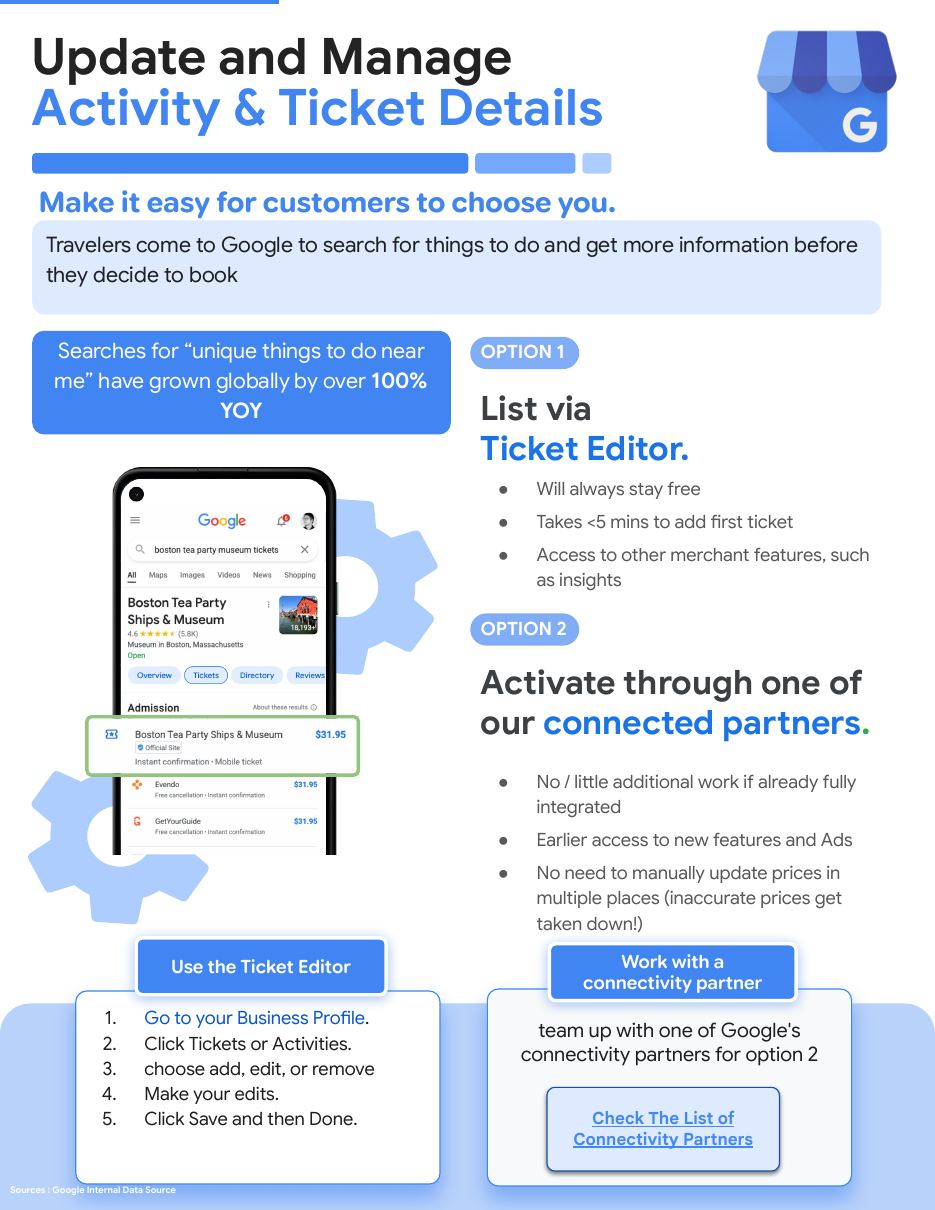
Travelers compare things to do on Google before booking, and searches for 'unique things to do near me' grew over 100% year over year. You have two ways to show bookable tickets and activities:
Option 1 — Ticket Editor: always free, under 5 minutes for your first ticket. Go to your profile → Tickets or Activities → add, edit or remove → Save → Done.
Option 2 — a Google connectivity partner: little extra work if you're already integrated, earlier access to new features and Ads, and prices stay in sync automatically (inaccurate prices get taken down).
Google's checklist 8 — Photos & videos
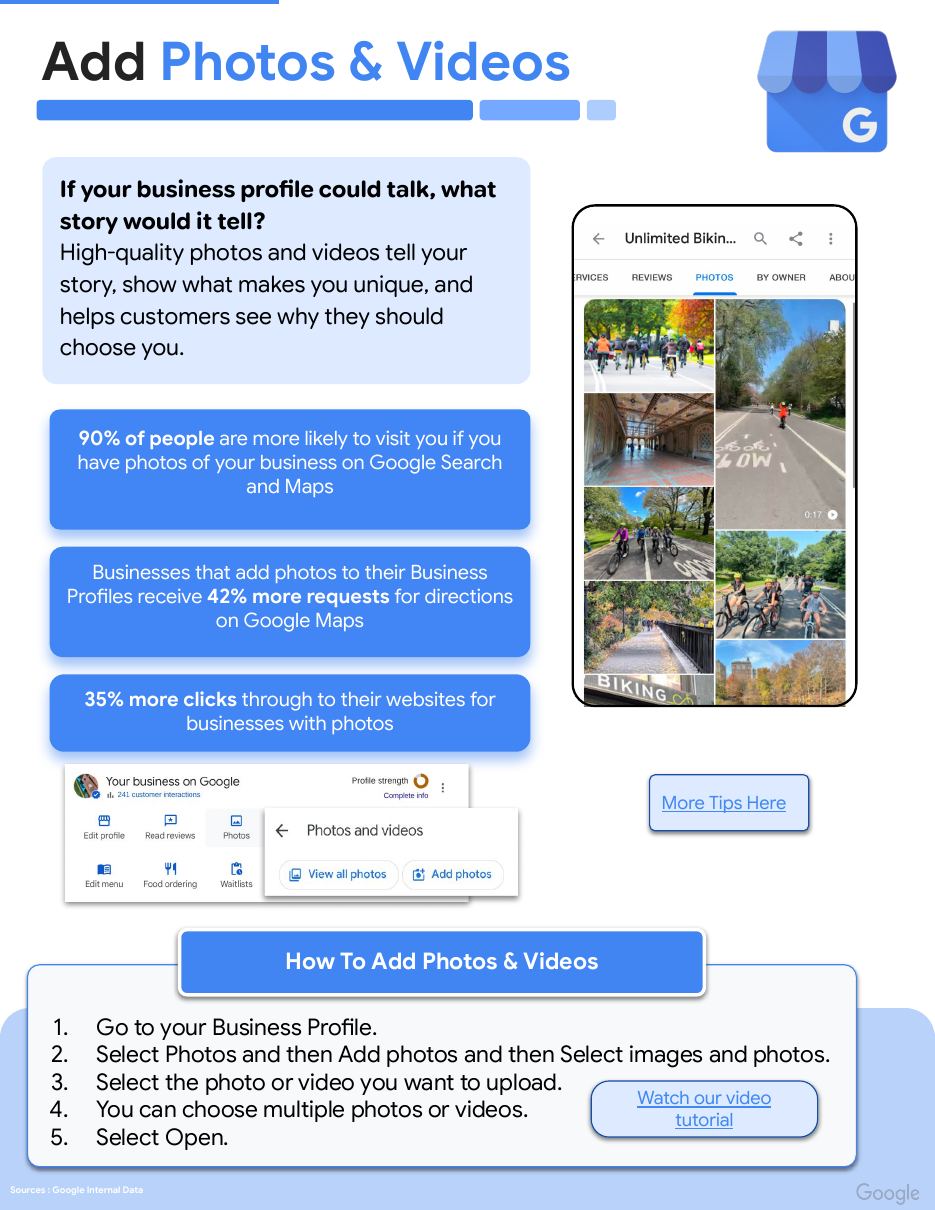
90% of people are more likely to visit a business with photos on Search and Maps. Businesses with photos get 42% more direction requests and 35% more website clicks.
How to: open your profile → Photos → Add photos → select one or more photos or videos → Open.
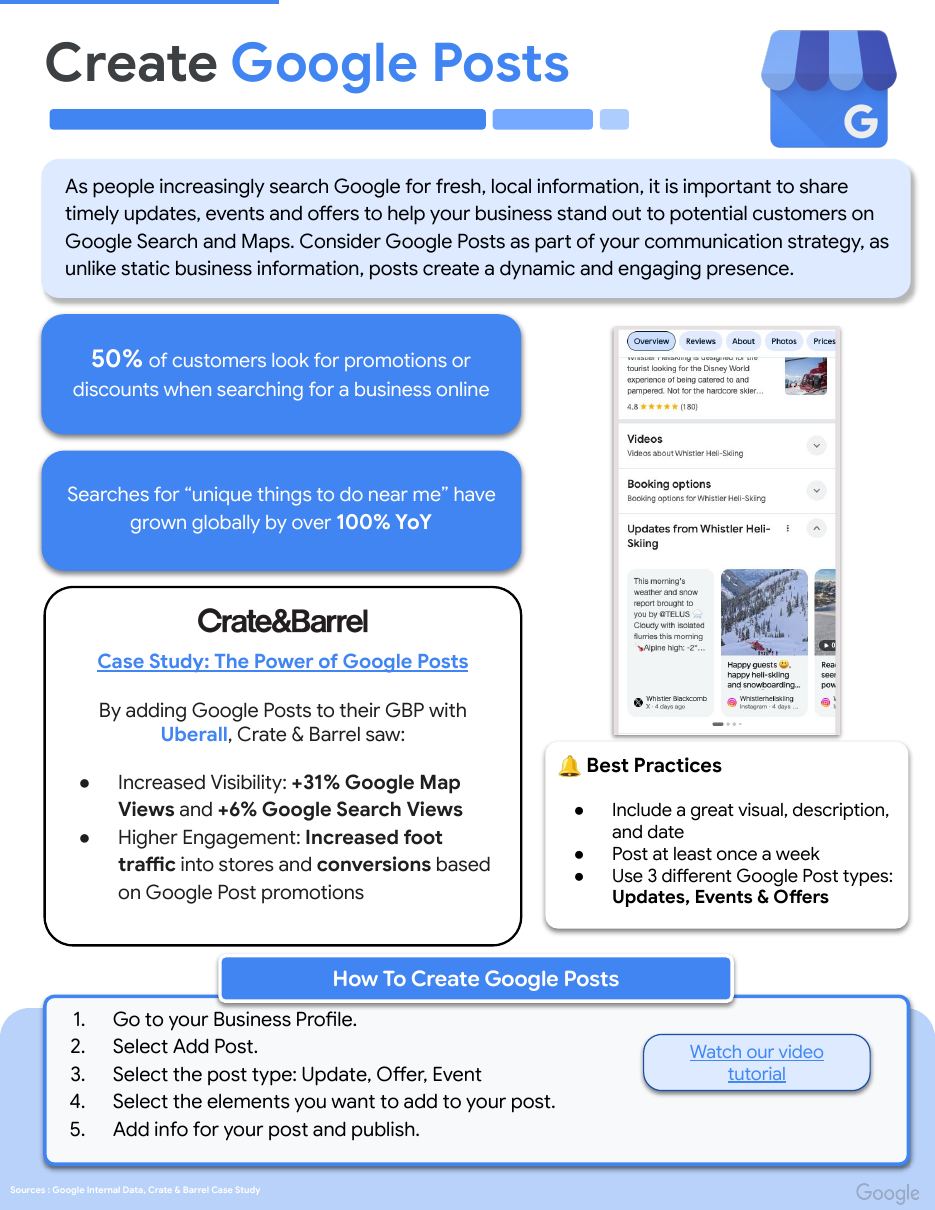
Google's checklist 9 — Google Posts
Posts keep your profile fresh with updates, offers and events. 50% of customers look for promotions when searching for a business online.
Best practices: include a great visual, a description and a date; post at least once a week; use all three types — Updates, Offers and Events.
How to: open your profile → Add Post → pick Update, Offer or Event → add the details → publish.
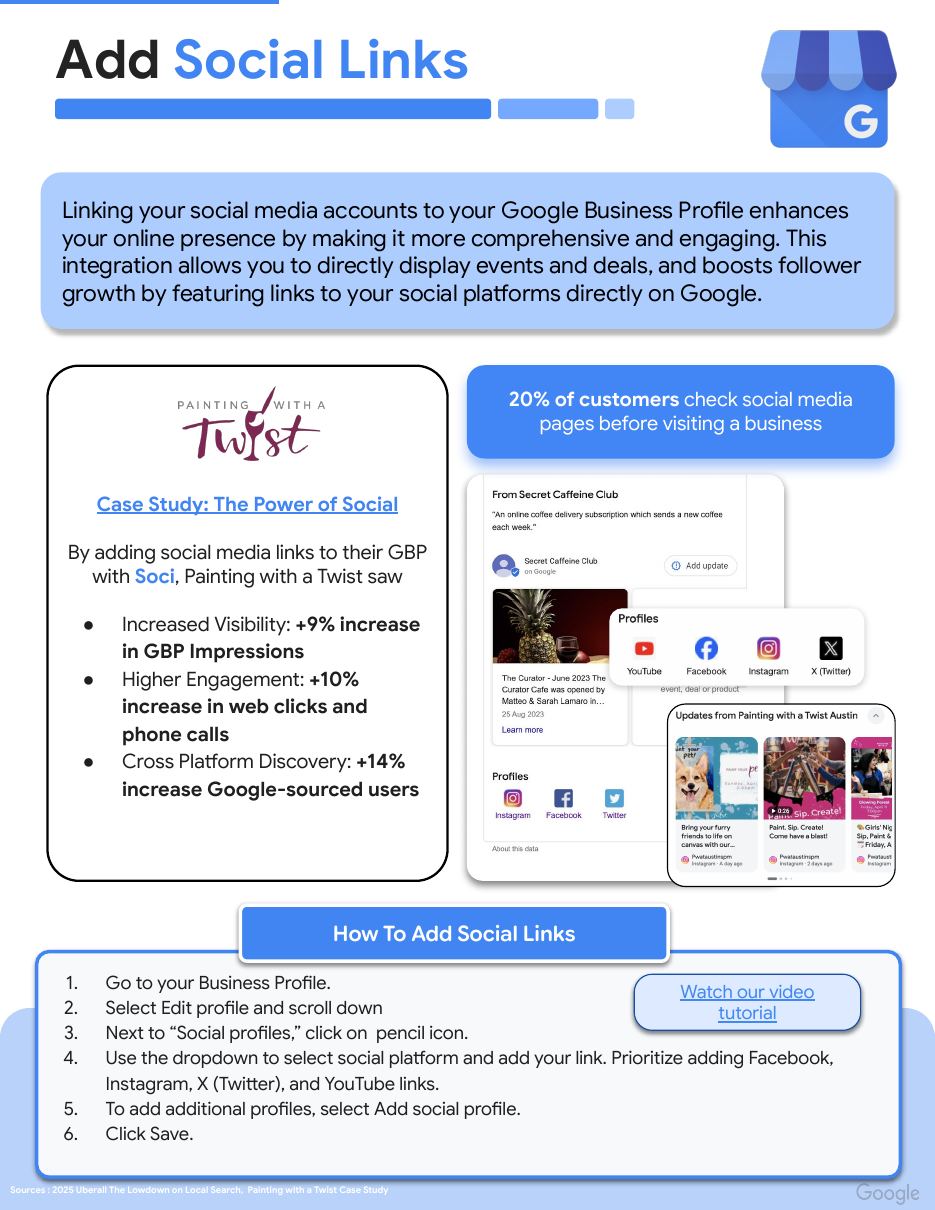
Google's checklist 10 — Social links
20% of customers check a business's social pages before visiting. Linking them lets your social activity show on Google.
How to: Edit profile → scroll to 'Social profiles' and click the pencil → choose a platform and paste your link (prioritize Facebook, Instagram, X and YouTube) → Add social profile for more → Save.
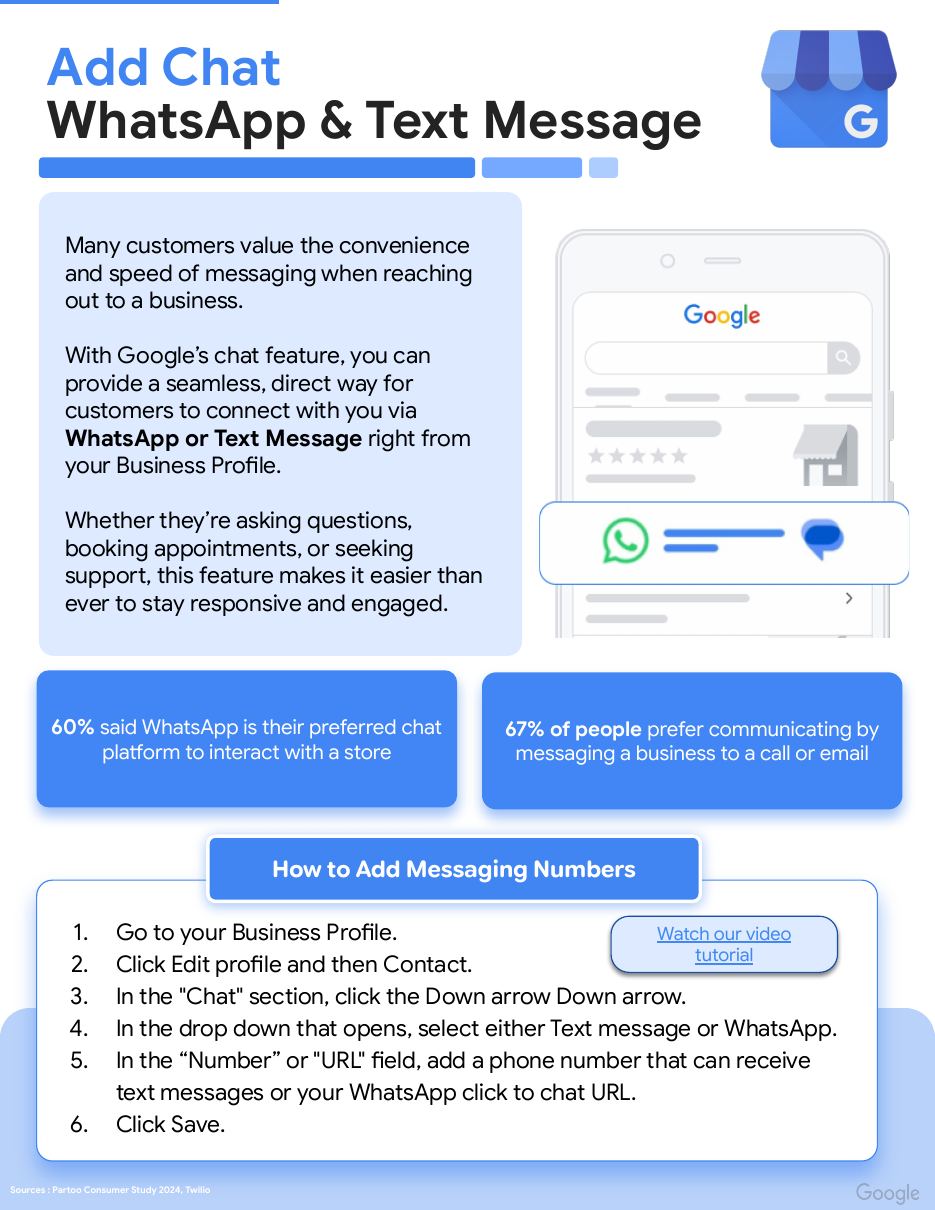
Google's checklist 11 — Chat links (WhatsApp & text)
67% of people prefer messaging a business over calling or emailing, and 60% name WhatsApp as their preferred chat platform. Add a chat link so travelers can ask questions before they book.
How to: Edit profile → Contact → in 'Chat' open the dropdown → choose Text message or WhatsApp → enter the number or your WhatsApp click-to-chat URL → Save.
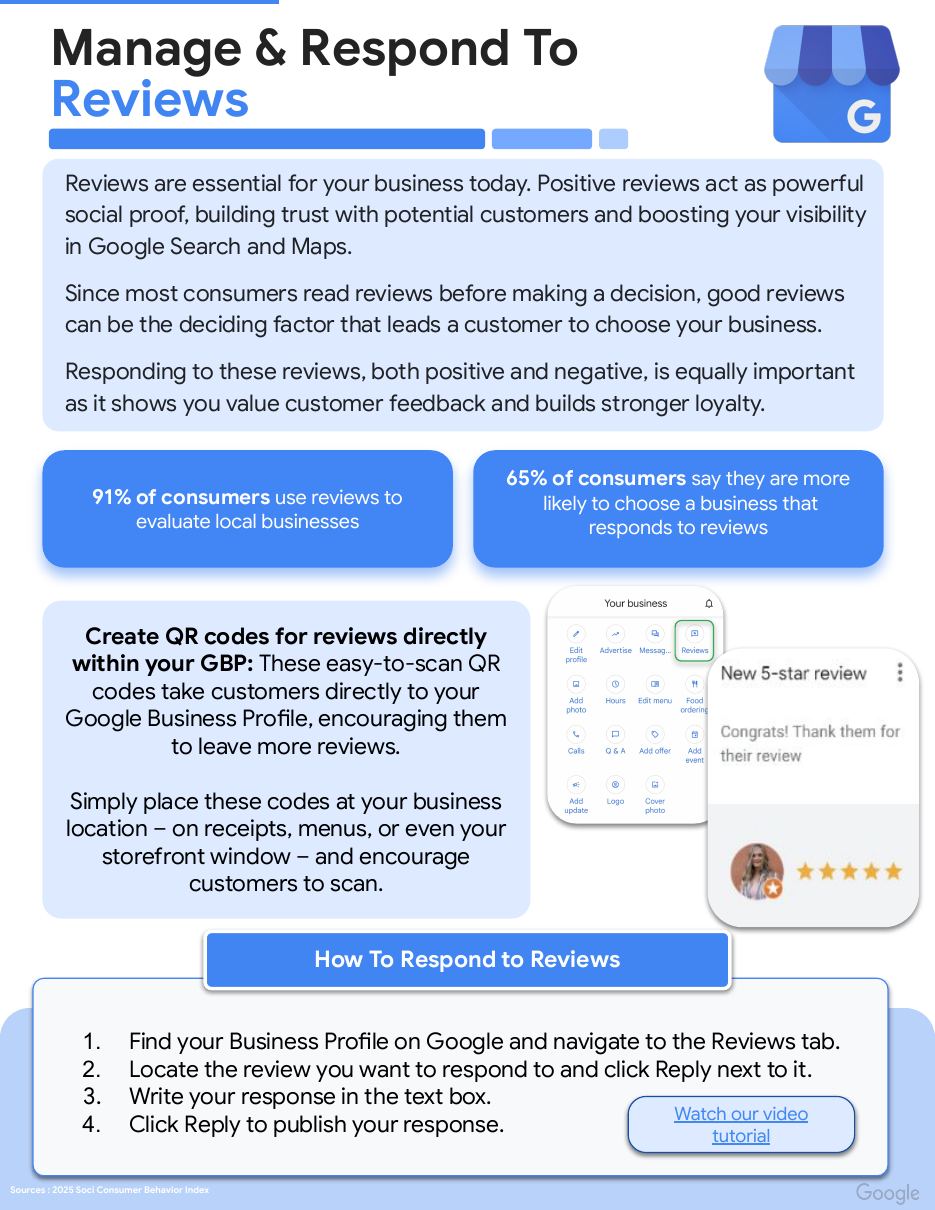
Google's checklist 12 — Reviews
91% of consumers use reviews to evaluate local businesses, and 65% are more likely to choose a business that responds to them. Reply to positive and negative reviews alike.
Tip: create a review QR code inside your profile and put it on tickets, receipts or your tour vehicle so guests can leave a review in seconds.
How to reply: find your profile on Google → Reviews tab → Reply next to the review → write your response → Reply. Source: Google's guide for tour & activity operators.
Key takeaways
- A verified Google Business Profile is the foundation of being found online.
- Categories, photos, and reviews are what move you up the rankings.
- Keep posting updates and replying to reviews weekly — Google rewards active profiles.
From the Tourpreneur webinar
Quick answers for tour operators
Short clips from Chaz Desousa’s webinar with Peter Syme of Tourpreneur.
Boost Your Google Business Profile for Huge Sales #shorts
A reminder to make your business profile useful to travelers comparing tours.
Watch on YouTube
Google Business Profile: Optimize for FREE Traffic! #shorts
Business-profile optimization supports organic discovery without requiring an ad campaign.
Watch on YouTubeWant this set up for you instead?
We're a Google Connectivity Partner. Setup gets your Official Site badge live on Google Things to Do.
Related GTTD Ads questions
- How is GTTD CPC different from regular Google Ads?
- What does "Organic Official Site listing included" mean?
- How long until my Official Site badge is live on Google?
- How much does GTTD CPC actually cost per click?